
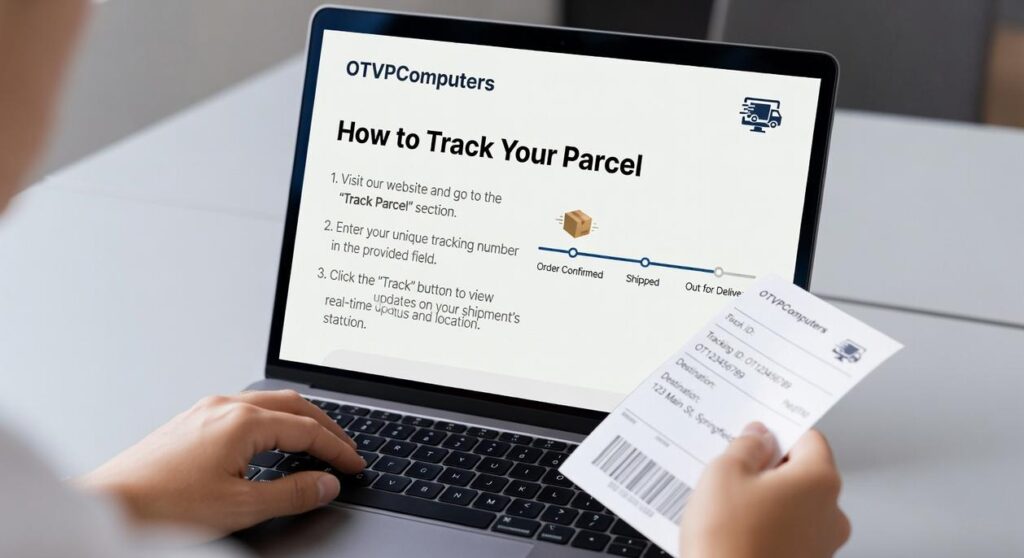
I know you want to know exactly where your order is right now.
You just placed an order with OTVP Computers and you’re checking your email every few minutes waiting for that tracking number. Or maybe you got the number but you’re not sure what to do with it.
Either way, you want answers fast.
Here’s how to track your parcel from OTVP Computers: I’ll walk you through finding your tracking number, checking your delivery status, and figuring out what to do if something looks off.
We built our tracking system to be simple. No jumping through hoops or digging through confusing carrier websites.
This guide covers everything from the moment your order leaves our warehouse until it shows up at your door. You’ll know exactly what each status update means and when to expect your tech.
Most questions get answered in the first two sections. But if you run into issues, I’ve included troubleshooting steps that cover the most common delivery problems we see.
Let’s get your order tracked.
Step 1: Locating Your Unique Tracking Number
Your tracking number is sitting in your inbox right now.
Finding it takes about 30 seconds. Once you have it, you’ll know exactly where your order is and when it’ll arrive (no more guessing or refreshing your email every hour).
Check Your Email First
Open your inbox and search for “Your Order has Shipped!” That’s the email you need. Your tracking number is right there, clearly labeled at the top.
Can’t find it? Search for this EXACT subject line: “Confirmation: Your OTVP Computers Order #[YourOrderNumber] has Shipped”.
Still nothing in your inbox? Check your spam folder. Sometimes shipping notifications end up there.
Log In to Your OTVP Account
Here’s how to track your parcel otvpcomputers if you can’t find the email:
• Log in to your account
• Click “My Account” at the top
• Select “Order History”
• Find your order and click “Track Package”
Your tracking number shows up right there with a direct link to follow your package.
Why bother logging in when you could just search your email? Because your account dashboard gives you MORE than just a tracking number. You’ll see your full order details and delivery estimates all in one place.
Pro tip: Screenshot your tracking number or save it in your notes app. You’ll want it handy when the delivery date gets close.
Step 2: How to Track Your Parcel in Real-Time
You’ve got a tracking number. Now what?
Most people just stare at it and wonder where to actually use the thing.
Let me walk you through this.
Using the OTVP Tracking Portal
Check your shipping confirmation email first. There’s a tracking link right there. Click it and you’re done.
No copying. No pasting. Just one click to see where your package is.
You can also find this same link in your account dashboard if you ordered while logged in. Same deal (one click and you’re tracking).
Direct Carrier Tracking
Here’s another option. Copy your tracking number and head straight to the carrier’s website.
If we shipped via UPS, go to ups.com and paste it there. Same goes for FedEx or DHL.
Why would you do this instead of using our portal? Some people prefer the carrier’s interface. It sometimes shows more granular location data.
Real-Time Updates
Our system pulls data directly from courier partners. That means when your package gets scanned at a facility, you’ll see it on how to track your parcel otvpcomputers within minutes.
According to shipping industry data, packages get scanned an average of 8 to 12 times from warehouse to doorstep. You’ll see most of those scans reflected in your tracking.
I won’t pretend it’s perfect. Sometimes there’s a delay of 15 to 30 minutes between a physical scan and when it shows up online. That’s just how the systems work.
Mobile Tracking
Every tracking link works on your phone. I tested this across iOS and Android devices because people asked.
You don’t need an app. Just open the link in your browser and the page adjusts to fit your screen.
Check it while you’re waiting in line at the coffee shop. Check it from your couch. Doesn’t matter where you are.
Decoding Your Tracking Status: What Each Update Means

You ordered something online.
Now you’re staring at a tracking page that says “In Transit” and wondering what that actually means.
I’ve been there. We all have.
Some people say tracking updates are self-explanatory. That you should just wait patiently and your package will show up. They argue that obsessing over every status change is pointless because the delivery date rarely changes anyway.
Fair point.
But here’s what they’re missing. When you know how to track your parcel otvpcomputers style (meaning you actually understand what’s happening), you can spot problems BEFORE they become headaches. Like when “In Transit” hasn’t updated in five days and you need to take action.
Let me break down what each status really means.
Order Confirmed / Processing is where everything starts. Your order went through and someone in a warehouse is pulling your items off a shelf. No tracking number yet because nothing has shipped. This usually lasts anywhere from a few hours to two days (depending on the company).
Label Created / Shipped means your package is actually moving. The warehouse printed a shipping label and handed it to the courier. You’ll get a tracking number now.
Here’s the thing though. Sometimes this status sits for 24 hours before the first scan happens. That’s normal.
In Transit is where most people get confused. Your package is bouncing between sorting facilities and distribution centers. Each time it gets scanned at a new location, you’ll see an update. I’ve seen packages show five updates in one day or go silent for three days straight. Both can be totally fine.
Out for Delivery is pretty straightforward. Your package is on a truck heading to your address TODAY. This is when you should actually expect it to show up.
Delivered means it arrived. The driver scanned it at your door (or mailbox or wherever they left it).
Attempted Delivery / Exception is the one that needs your attention. The driver showed up but couldn’t complete the delivery. Maybe nobody was home to sign. Maybe the gate was locked. Check your tracking page for specifics because you might need to schedule a redelivery or pick it up yourself.
One more thing.
If you run into weird error messages while checking your status, I wrote a guide on how to troubleshoot errordomain otvpcomputers that covers the most common issues.
The bottom line? Tracking statuses aren’t mysterious. Once you know what each one means, you can stop wondering and start knowing exactly where your stuff is.
Our Delivery Partners & Estimated Timelines
I work with carriers who actually show up.
We use FedEx, UPS, and DHL. These aren’t random choices. They’re the ones who consistently get tech gear to your door without turning your new laptop into a hockey puck.
Here’s what to expect.
Standard domestic shipping takes 3-5 business days once we mark your order as shipped. That’s from our warehouse here in Sioux Falls to wherever you are in the States.
Need it faster? Expedited shipping gets it to you in 1-2 business days.
International orders are different. You’re looking at 7-14 business days depending on where you live. Customs can slow things down (and there’s not much we can do about that).
One thing to remember. Business days don’t count weekends or holidays. So if your package ships on a Friday, don’t expect it Monday.
Want to see where your order actually is? Check out how to track your parcel otvpcomputers for real-time updates from our carriers.
Look, shipping isn’t glamorous. But when you’re waiting on a new graphics card or that monitor you’ve been eyeing, knowing when it’ll arrive matters. We keep it simple and we keep you posted.
Troubleshooting: What to Do If You Have an Issue
Your tracking number isn’t updating.
I know that’s frustrating. You want to see where your package is right now.
Here’s what’s actually happening. When you get that shipping email, the courier doesn’t always scan the package immediately. Sometimes it sits for a bit before it enters their system.
Give it 24 to 48 hours. I wish I could tell you exactly why some carriers are faster than others, but honestly, it varies wildly depending on the facility and time of year.
Your package says delivered but you don’t have it.
This one makes people panic. I get it.
Check the obvious spots first. Your porch, side door, mailroom. Ask your neighbors (packages end up in weird places sometimes). If you’re in an apartment building, check with the front desk.
Still nothing after 24 hours? Contact our support team. We’ll figure it out together.
Delivery got delayed.
Weather happens. So does holiday shipping volume. And to be honest, sometimes carriers just fall behind for reasons they never fully explain to us.
The best way to how to track your parcel otvpcomputers is through the tracking page itself. It’ll show you the most current delivery estimate we have.
I can’t promise those estimates are always perfect. But they’re the most accurate information available at any given moment.
Stay Informed, Get Your Tech Faster
You came here to figure out how to track your order. Now you know exactly where to look.
I’ve walked you through every step from checkout to delivery. You can find your tracking number in your confirmation email or your OTVP account dashboard. You know what each status update means and when to expect the next one.
We built this system to keep you in the loop. No more wondering where your tech is or when it’ll arrive.
Here’s what to do if something looks off: Check your tracking status on how to track your parcel otvpcomputers. If the information hasn’t updated in over 48 hours or shows a problem, contact our Customer Support team right away. Have your order number ready and we’ll sort it out fast.
Your tech purchase matters. We make sure you can follow it every step of the way.
 Uryxara Holt is the kind of technology writer who pays close attention to how industries evolve around people rather than apart from them. As the founder of OTVP Computers, they approaches Latest Tech Innovations, Tech Industry Developments, and Hands-On Tech Tips with a broader perspective than simple trend coverage. Uryxara seems deeply interested in the relationship between technology and everyday adaptation — how digital tools slowly reshape routines, expectations, businesses, and even the way people think about problem-solving itself.